







This page is largely obsolete as it describes the Perl-based Bloch Viewer, which significantly improves the graphics of the largely obsolete IDL-based Bloch Simulator. The now recommended version runs directly in an internet brower. You probably only need the IDL/Perl programs to get extra execution speed, for example.
A 3D vector graphics viewer was developed for teaching Magnetic Resonance Imaging. It is provided as an add-on to a Bloch simulator that in itself provides decent graphics on all hardware. In contrast, the (now largely obsolete) add-on viewer relies on the 3D capabilities introduced in modern graphics cards. The viewer is programmed in Perl, and works for most operating systems including Linux, Windows and Mac OS. It is open-source software made available for free.
Contents
- About the Bloch Viewer
- Example animations
- Requirements
- Installation
- Troubleshooting
- Configuring and changing the simulator and viewer
- Saving animations
- Frequently asked questions, FAQ
About the largely obsolete Bloch Viewer
Use of the Bloch viewer is no longer recommended (see above). Try the web based version instead.
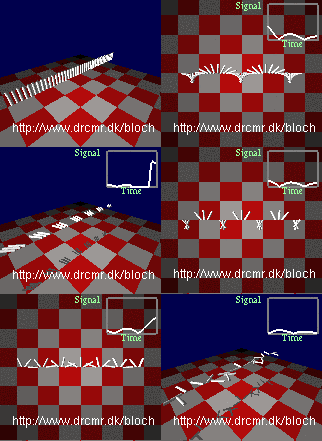 The Bloch simulator was made to illustrate spin physics and magnetic resonance techniques in clear and intuitive ways, and it was a design goal that the hardware requirements should be minimal. Whereas the original interface is believed to meet these standards, it is clear that the capabilities offered by modern graphics cards can take the experience to a higher aesthetic level and improve visualizations, thereby bringing the simulator significantly closer to other design goals (the software should be interesting to use for students, it should be flexible and encourage further exploration). With a capable, configured graphics card, you can expect rapid, high resolution rendering at excellent quality. All for free.
It was simple to change the original program to generate a stream of simple 3D graphics commands that flows to the viewer via a one-way pipe. Perl and the OpenGL module provides an excellent framework for interpreting the commands and rendering the graphics.
Depending on the operating system and hardware, the viewer may be slightly more demanding to get installed than the simulator. Also it requires more from the PC running the software. Hence the viewer is merely considered an option for those wanting improved visualization capabilities.
Example animations
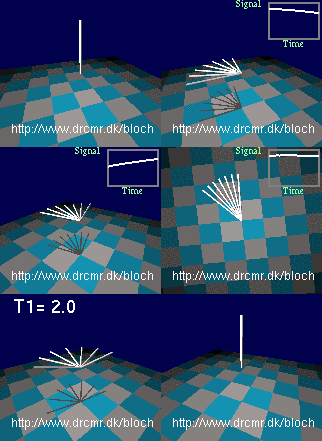
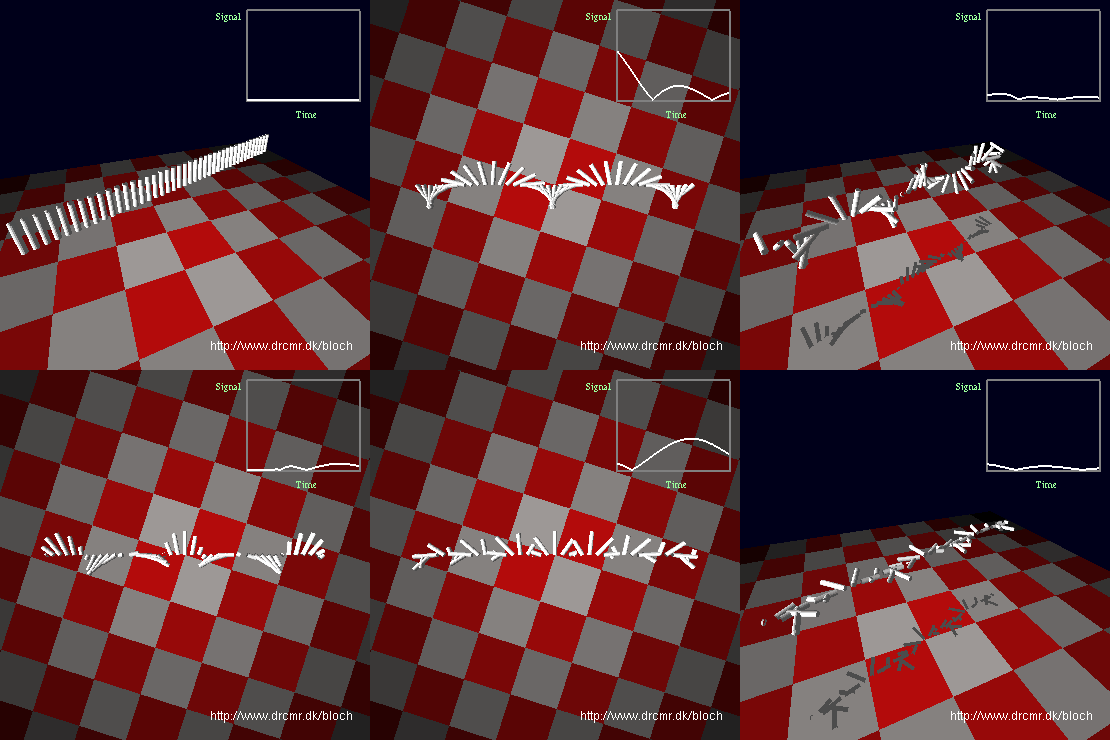
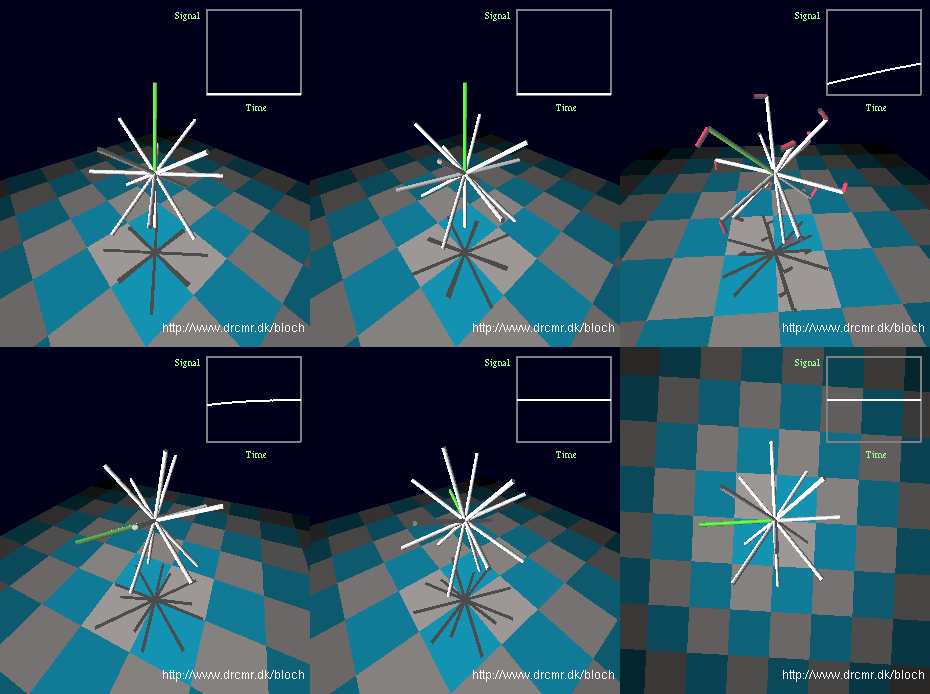
Below are links to a few animations recorded with the simulator and viewer. They reflect what is seen on the screen during interactive use of the software. The white bars are the magnetizations and red are the forces on these (the torques) that are caused by the radio wave field.
- Magnetization in off-resonance radio wave field
- Magnetization in resonant radio wave field
- The spin echo
- K-space imaging. The signal reflects the similarity of periodic structure in the object and the periodic phase roll pattern induced by imaging gradients.
Examples of how the simulator can be used in a teaching context are given on the simulator homepage.
Requirements
Installation of the now largely obsolete Bloch viewer involves a few steps, as it depends on Perl, the Glut library, and the OpenGL module for Perl (all free and relatively easy to install). Also, your graphics card should support 3D to get sufficient speed (most do), otherwise you may be best off using the simulator standalone without the optional viewer. The roles of the mentioned components are described briefly here:
- Perl
- Perl is a versatile programming language and free compilers are available for all operating systems (Linux, Windows, Mac OS,...). The viewer is simply a text file with Perl commands. A typical install requires approximately 50-100 MB of disk space. Perl is typically pre-installed on Linux and Mac computers.
- The GLUT library
- GLUT is typically pre-installed on Linux and Mac computers, and it is bundled with the Perl OpenGL module for Windows. It is a set of small programs to create 3D graphics elements. It relies on OpenGL, which is a language for interaction with 3D graphics cards. Even if your graphics card does not support OpenGL directly, the viewer may still work perfectly via e.g. the Mesa library that is an OpenGL implementation. The viewer may be slow, however, if your graphics card does not support 3D graphics. These issues are not something you need to care about during installation, but if you have a 3D graphics card, and the viewer nevertheless ends up being slow, you should. In this case, read the troubleshooting section.
- The Perl OpenGL module (POGL)
- POGL is a set of programs that make GLUT and OpenGL commands available to Perl programmers.
Installation of the largely obsolete Bloch Viewer
First consider if you really want to install the Bloch Viewer instead of the recommended web version .
Windows installation
You can conveniently install Perl via the free ActivePerl distribution or as part of Cygwin. Cygwin generally makes Windows machines bearable to use and can generally be recommended. The former approach is nevertheless described here, as it supposedly gives a simpler and more compact installation, partially described on the OpenGL::Image homepage (the Cygwin approach has not been tested):
- You need sufficient privileges to install new software. Get these, e.g. by logging in as administrator.
- At the time of writing, the latest Perl OpenGL installation packages are for ActivePerl version 5.8. Therefore, download and install ActivePerl version 5.8 (not 5.10) of the free ActivePerl Standard Distribution provided as an MSI file (installation file recognized by Windows). The default choices are appropriate.
- Install the Perl modules OpenGL::Image and OpenGL::Shader available on the OpenGL homepage by running the following commands in a shell (Type "cmd" in Vistas search field or after choosing "Run..." in Windows XP):
ppm install http://graphcomp.com/opengl/ppm58/OpenGL.ppd
The numbers above must reflect the installed version of Perl (e.g version 5.8). If you can only access the web via a proxy server, you may need to set the http_proxy environment variable appropriately before the commands can be run successfully, e.g.,
ppm install http://graphcomp.com/opengl/ppm58/OpenGL-Image.ppd
ppm install http://graphcomp.com/opengl/ppm58/OpenGL-Shader.ppdC:\> set http_proxy=http://my_local_proxy_server:8080
GLUT is automatically installed together with Perl OpenGL when installed as described.
- The simulator itself is just a text file blochviewer.pl that must be downloaded to the directory where you saved the file bloch.sav during installation of the Bloch Simulator. In the same directory, you may choose to put the GPL License, describing the conditions under which the program may be redistributed.
- You are now ready to test the simulator by clicking the file bloch.sav. It hopefully detects and starts the viewer. If not, go to Troubleshooting (e.g. if you get a message about freeglut missing).
- Finally you may wish to create a startup script that launches the simulator in your preferred mode, if you want to avoid the pop-up windows when the simulator is started (possibilities are described below ). An example batch file is provided here. The file can conveniently be copied to the directory with bloch.sav and blochviewer.pl. It must be edited to reflect your installation directories. For the viewer to work, the working directory should be the common location of the simulator/viewer files. An icon or menu item can be made to execute the batch file.
Linux Ubuntu/Debian installation
- Install the Perl OpenGL, package and its dependencies, simply by typing
apt-get update
on the command line (you need root privileges to install new software).
apt-get install libopengl-perl - Download and save the file blochviewer.pl in the directory where you saved the file bloch.sav during installation of the Bloch Simulator, and make it executable by typing
chmod a+x path_to_simulator_and_viewer/blochviewer.pl
- For the viewer to work, this must be the working directory during simulator startup, so depending on your preferences, you may want to adapt, save, and make executable the following simulator startup script bloch somewhere in your path, e.g. in /usr/local/bin/. It controls the appearance of the simulator via environment variables described in the configuration section .
- You may also need to edit the first line of the file blochviewer.pl if Perl is not installed in the typical location.
- You are now ready to start the simulator that hopefully detects and starts the viewer. If not, see the Troubleshooting section below.
- If the simulator works, you may also wish to install the Perl module OpenGL::Image. This provides a way to save frames that can be converted to animations. See Saving animations.
Linux Fedora installation
- In Fedora Linux, you need to install and (auto-)configure the CPAN module before installing POGL. Also you need to install GLUT. Both are done by executing the following commands:
sudo yum install perl-CPAN
After this, you can continue installation as specified for MacOS below.
sudo perl -MCPAN -e 'install Test::More'
sudo yum install freeglut-devel
Mac OSX installation
- Make use of the pre-installed CPAN module to install the Perl OpenGL package and its dependencies as described below, for example. The Mac developers kit Xcode is needed for this as installed modules are compiled from source. Open a shell and type"which make" to test if Xcode is installed. If the resulting output is not the path to the make-command, you need to install Xcode. Otherwise you are ready to initiate installation of Perl OpenGL by typing the following in a shell:
perl -MCPAN -e 'install OpenGL::Image'
- If you have not used the CPAN module before, some easy configuration needs to be performed. You will be asked lots of questions that can mostly be answered by pressing enter (selects default choice). Probably the only questions that require your attention concerns your location and preferred Perl module download sites. Recommendations are given for the latter, and you may just choose these. When configuration is finished, you will be asked whether dependencies such as the OpenGL module should be installed. Answer yes, and the modules will automatically download, compile and install. This may take a few minutes and insignificant warnings may appear. Have patience. The installation finishes with a self-test (graphical window appears). Just follow instructions on the screen.
- Download and save the file blochviewer.pl in the directory where you saved the file bloch.sav during installation of the Bloch simulator, and make it executable, e.g. by typing
chmod a+x path_to_simulator_and_viewer/blochviewer.pl
The viewer should be auto-detected and started when the simulator is started as before. Try this and verify that the simulator and viewer both starts. - If you want to avoid the pop-up windows appearing when the simulator starts, you should now download and adapt the startup script described for the Linux installation above. Finally create an icon or menu item pointing to the startup script.
Other Unix/Linux distributions
Use the package handling system recommended for your distribution to install Perl and OpenGL support. The Perl module OpenGL::Image may not be available pre-compiled for your distribution, but is fairly straightforward to install using the CPAN module described above or by following instructions on the package homepage. The rest of the installation continues as described for Debian/Ubuntu/Mac above.
Troubleshooting
If you ended up here, its likely because you are installing an old version of the Bloch Simulator or Viewer. If so, please try the recommended version instead. This section covers only the old IDL/Perl implementations.
Most potential problems with the IDL/Perl-version are related to the installation which, however, is likely to proceed smoothly. Hints are provided in case it does not. Please let me know, if you experience non-trivial problems (solved or not) that should be described here (email: larsh @ drcmr.dk):
- Be aware that the graphics will be similar to the pre 3.0 simulator versions unless you installed the separate Bloch viewer as described above.
- The simulator needs to be version 3.0 at least in order to support the viewer (version number is seen in title bar). If it is older, upgrade the single file bloch.sav.
- Check that the simulator can run alone without the presence of the viewer (rename it temporarily).
- The viewer starts, but it "awaits graphics commands from STDIN". This is the expected behaviour, if you started the viewer directly. Normally is is started indirectly via the simulator bloch.sav.
- If you have the statistical analysis software SPSS installed, the simulator (or your statistics files) may not start as intended, since both programs uses the file suffix .sav for their files. You can safely (re-)assign the suffix to SPSS and start the simulator via the provided startup scripts or by assigning the following command to an icon or a menu item:
Windows: idlrt -vm=path_to_simulator/bloch.sav
Remember to set the working directory to the common location of the simulator and viewer.
Linux: idl -vm=path_to_simulator/bloch.sav
Mac: Associate "bloch.sav" with the application "idlvm.app" located in the IDL install directory. - If you get a message about a file "freeglut.dll" missing when the simulator or viewer is started, you need to copy this file into %WinDir%\System (likely to be C:\WINDOWS\System on your system). It is located in your POGL installation directory, e.g. C:\Perl\site\bin\.
- Ifyou have tried to install the Perl OpenGL module by use of the CPAN module, but need to re-configure CPAN (e.g. if Xcode was not installed on your Mac when configuring CPAN), type "cpan" in a shell to get a cpan-prompt. Type "o conf init" for re-configure CPAN, and type "exit" when finished. You can now try installation of Perl OpenGL again as described above.
- If the simulator executes but does not start the viewer, please read the messages appearing during startup. These provide fairly detailed information about the cause of the problem. Report the messages, if you can not extract the essence and solve the problem.
- You may also benefit from starting the viewer directly without the simulator (click it, or type "./blochviewer.pl" on the command line after the appropriate directory is chosen). A graphics window should pop up if the viewer is working, but nothing else should happen. Any error messages might be of help.
- If the "floor" shows but not the magnetization vectors even though the simulator is running, you need to download the Perl OpenGL source package and set a path as described in the beginning of file blochviewer.pl
- If the viewer works, but it significantly slows down viewing compared to standalone use of the simulator, you probably do not have 3D support on your graphics card. It may be old (most cards purchased within the last 5 years should be OK), your system may have accelerated graphics disabled, or you may not have the necessary drivers installed, that allow programs to make full advantage of your capable graphics card (this is likely to be the issue). In this case you're on your own, but searching the Internet for OpenGL driver and your graphics card name might be of value.
- In Windows, you will get an extra black window of no use (an IDL feature). Just minimize and ignore it.
- Certain X windows environments will open the dialog boxes with zero size during startup. Increase the size and check that the software is working as expected. If it does, you may want to set the BLOCH_NO_DIALOG environment variable in your startup script. It suppresses dialog boxes (defaults are chosen in all cases).
- The IDL simulator and the Perl viewer opens separate windows (there is no easy way to integrate them, unfortunately). When the simulator is manipulated, the viewer window may consequently get obscured. Good solutions exist: Disable the simulator window during startup (when you are asked) or by setting the BLOCH_NO_3DWIN environment variable to suppress the appearance of simulator 3D graphics. Alternatively you can make the viewer window stay on top of other windows, as described here: For linux, right-click on the title bar of the viewer window, and select "Always on top" that will make the window remain visible whereever the focus goes (depending on your window manager, this option may not exist). Move the viewer window so it covers the similar graphics window of the simulator. Free software provide similar functionality on other platforms (only download software from trusted sources, of course).
Configuring and changing the simulator and viewer
The appearance of the simulator and the amount of debugging information is controlled using environment variables. These are set using the startup scripts described above (Mac, linux: bloch. Windows: bloch.bat):
BLOCH_NO_3DWIN: If set, the simulator starts without the 3D graphics window, which is superseeded by the viewer. This option appeared in version 3.1 of the simulator that will also ask if the window is wanted, if BLOCH_NO_3DWIN is not set (update only one file bloch.sav). An alternative way to avoid window interference is described in the troubleshooting section.
BLOCH_NO_DIALOG: If set, the popup-windows shown during simulator startup, are suppressed. These are mostly useful during installation.
The viewer is just a text file, which you can change to meet your needs. It is distributed under the GNU General Public License that allows you to change and even sell the software as long as you make the source code of any derived work unconditionally available under the same license upon request. More info is in the FAQ.
Near the beginning of the file, you will find a section with variables that influence the look and feel. If you know a bit of Perl, it should not be difficult to add new functionality. The program was made for use with the Bloch simulator, but might also be adapted for other vector viewing purposes, as it simply interprets a stream of simple 3D graphics commands.
Saving animations
The Bloch simulator is mainly intended for interactive use by students and lecturers, but it also provides capabilities for saving animations in animated GIF format, that can be converted to MPEG or other movie formats. If the Perl module OpenGL::Image is installed as described above, the Bloch viewer will be capable of saving frames in TARGA image file format .tga. These formats are convertible to whatever format you wish using free software. The programs ImageMagick, gifsicle and ffmpeg available for most operating systems are recommended in this context. The animations are well suited for optimized animated GIF format, so unless you need to add soundtracks, you may not need ffmpeg. Complete instructions are not provided, but below are some useful commands for the mentioned programs.
- Recording of movies or frames is initiated with the Record-button. The frames will be saved in GIF (by the simulator) and TGA formats (by the viewer). If the Perl Tar module is found, the viewer will save all frames in a single Tar file, when the simulator is quit. This may take a while.
- Convert frames in TARGA format to animated GIF:
convert -delay 6 *.tga tmp.gif
This is time and memory consuming. There are reports of flaws in Internet Explorers timing handling, that will surface if the frame delay is below 6. - Compress the GIF files by reducing colormap and saving only frame changes:
gifsicle -b --optimize=1 --colors=64 tmp.gif
gifview -a tmp.gif - Do not use second-level optimization above if you need your application to run on buggy Windows: Optimization based on transparency encoding reduces the file size, but will make your animated GIF gradually slow down in Internet Explorer, apparently because all prior frames are calculated each time a frame is shown.
- An animation saved in GIF format can be split into frames using gifsicle. It can then be converted into JPEG-format and combined with a soundtrack using the following commands:
for f in *gif ; do convert -quality 100 $f `basename $f gif`jpg ; done
ffmpeg -sameq -r 15 -i frame%06d.jpg -i soundtrack.wav -r 30 -ar 22050 movie.mpg
Frequently asked questions, FAQ
- What are implications of the viewer being distributed under the GNU General Public License (GPL)?
- As described in the GPL, you may use and change the software as you wish. You are also allowed to redistribute or even sell it, but only if you make available the source code upon request, and if such derived work is licensed under the GPL. See the Wikipedia discussion of the GPL for additional info.
- Why is the viewer distributed under the GPL whereas the simulator is not?
- There is some work involved in making the source suitable for distribution, especially since some disturbing tricks were used to get around quirks in IDL 6.0. The IDL language was used to implement the simulator for a number of reasons described in the design article, but the IDL compiler is not available for free, and the expected community interest in developing it further in this language is therefore expected to be limited.